Kenyon Ndezi
  • Home
  • Discover
  • Finance
    • Business
    • Banking
    • Invest
  • Lifestyle
    • Travel
    • Food
  • Blogging
    • SEO
    • Troubleshoot
    • Themes
    • Plugins
    • WordPress Tips
featured
  • How to get over gym anxiety.
    • February 22, 2022
  • Top Budget Travel Destinations for Digital Nomads
    • April 17, 2023
  • person wearing nike shoes, sitting on the edge of a building
    Affiliate Marketing: A Beginner’s Guide To Making A Living Online
    • June 28, 2022
  • Shared Hosting Vs VPS Hosting Vs Dedicated Server
    • September 5, 2021
  • How to Create a Successful Email Marketing Campaign
    • April 17, 2023
Kenyon Ndezi
  • Home
  • Discover
  • Finance
    • Business
    • Banking
    • Invest
  • Lifestyle
    • Travel
    • Food
  • Blogging
    • SEO
    • Troubleshoot
    • Themes
    • Plugins
    • WordPress Tips
Home Posts How To Hide Widgets On Specific Posts And Pages In A WordPress Site.
  • Plugins

How To Hide Widgets On Specific Posts And Pages In A WordPress Site.

  • August 24, 2021
  • Kenyon Ndezi
Total
2
Shares
0
0
2

Widgets are blocks of content that you add to your site in various locations, such as the footer, sidebar, top, below, or anywhere in your site. Different widgets provide various functions that enhance the user experience, showcase information, or add additional functionality. Occasionally, you might want a widget to only show on a specific page as opposed to the entire site. This will be helpful for widgets found on footers and sidebars that appear on every page.

Download the “Widget Context” Plugin.
Nothing is annoying as having a pesky widget that seems to appear on every single page or post. Widget Context plugin allows you to show or hide widgets on any section of the site.

  • To download Widget Context, head over to Plugins on your WordPress admin panel and select “Add New.”
  • On the search bar, type in the word “Widget Context.”
  • Click “install” when the plugin shows up.
  • Activate the plugin after installation.

How to use the “Widget Context” plugin.
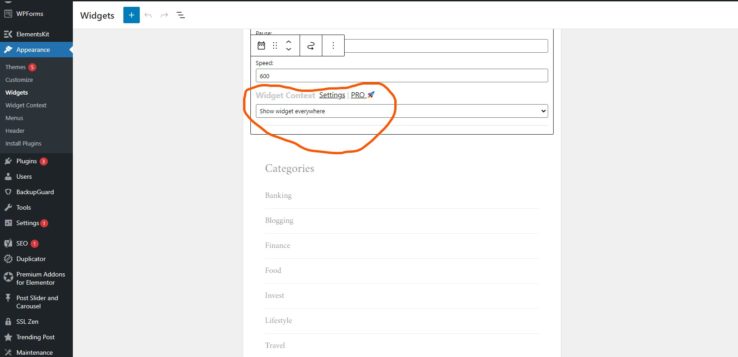
Head over to Appearance>Widgets and select the widget of choice. In the Widget settings, you’ll see the “Widget Context settings” that will allow you to display or hide widgets on different sections of your site. These settings can also be accessed on the front end of the website by clicking Cutomize>Widgets on the setting of your site. 

There are many settings to select from such as:

  • Show widget on selected (This allows you to select specific pages and posts that will show the widget)
  • Hide widget on selected
  • Show widget everywhere
  • Hide widget everywhere. 

Why would you want to hide or display widgets on your site?

  • Some themes will display the same widget on every single page of a site. This might be intrusive, especially on pages that don’t need it. An example would be a widget that showcases “trending posts” on the footer of your site, however, you might not want that information on your “About Us” page. Using “Widget Context”, you’ll be able to decide where the widget will appear.
  • The plugin also allows you to showcase widgets on all pages of your site. You might have a Newsletter sign-up widget that you want to display throughout the site to collect emails.

Get your blog up and running

Blogging is a highly lucrative venture for anyone who wishes to make passive income. To get started with blogging, read this article to get you started.

Total
2
Shares
Share 0
Tweet 0
Pin it 2
Kenyon Ndezi

Kenyon Ndezi is a recent graduate, writer, creator of vividbay.com, and the owner of Neonbuild.com, which is a company focused on building apps for small businesses and individuals. Follow along and get inspired!

You May Also Like
View Post
  • Plugins

Solving Duplicate Content Issues: Use the Bulk Move Plugin to Manage posts in Multiple Categories

  • Kenyon Ndezi
  • September 12, 2023
View Post
  • Plugins

10 Essential WordPress Plugins for Your Blog

  • Kenyon Ndezi
  • April 16, 2023
View Post
  • Plugins

How To Migrate A WordPress Site From Shared Hosting To A VPS Server Using Only Plugins.

  • Kenyon Ndezi
  • September 5, 2021

Leave a Reply Cancel reply

Your email address will not be published. Required fields are marked *

Featured
  • Why You Should Avoid Buying Traffic and Backlinks from Fiverr
    • September 14, 2023
  • How To Start A Successful Blog That Makes More Money Than Any Conventional Job.
    • August 16, 2021
  • All You Need To Know About An RRSP Account
    • April 10, 2022
  • TD Easy Trade Review: A great online trading platform for beginner investors
    • March 24, 2023
  • Why is There no Uber in St. John’s Newfoundland?
    • January 31, 2024
Latest
  • Conquer That Interview: Your Guide to Ace Your Next Opportunity
    • February 2, 2024
  • Why I usually finish my Google searches with Reddit
    • February 1, 2024
  • Why is There no Uber in St. John’s Newfoundland?
    • January 31, 2024
  • A Practical Guide to Canadian Immigration: How to Write Explanation Letters Without Over-Reliance on ChatGPT
    • November 9, 2023
  • A Comprehensive Guide to Recycling Your Vehicle in Canada
    • September 21, 2023
Categories
Banking
11 Posts
View Posts
Blogging
5 Posts
View Posts
Business
10 Posts
View Posts
Finance
15 Posts
View Posts
Food
3 Posts
View Posts
Invest
14 Posts
View Posts
Lifestyle
9 Posts
View Posts
Travel
15 Posts
View Posts
Wordpress Tips
5 Posts
View Posts
You Might Like
  • 1
    How to Start Investing for Your Future
    • April 16, 2023
  • 2
    Harnessing the Power of Social Media: Boosting Earnings for Content Creators
    • July 23, 2023
  • 3
    Sezzle Review: Buy Now Pay later
    • November 7, 2021
  • 4
    How To Start A Successful Blog That Makes More Money Than Any Conventional Job.
    • August 16, 2021
  • 5
    Make An Extra $1000 A Month With Buildbox
    • June 4, 2022
SUBSCRIBE TO OUR NEWSLETTER
Kenyon Ndezi
  • Contact
  • About
  • Privacy Policy
Business & Lifestyle

Input your search keywords and press Enter.